Blog
PDF to Word Converter – Free Online PDF Tool | GoDocLab
PDF to Word Converter: Convert PDF Files to Editable Word Documents Online
PDF files are useful when you need a document to look consistent across different devices. Editing them, however, can be frustrating. If you need to change a paragraph, correct a mistake, update a table, or reuse information, working directly with a PDF is often less convenient than working with a Word document.
That is where a PDF to Word Converter can help.
A PDF to Word converter changes the content of a PDF into an editable Microsoft Word document, usually in DOCX format. This allows you to make changes without recreating the entire document from scratch.
GoDocLab provides online PDF tools that can help users handle common document tasks directly from their browser.
The quality of a conversion depends on the original PDF. Text-based PDFs are generally easier to convert than scanned documents or files with complicated layouts. Microsoft also explains that some PDF elements, including complex tables, graphics, footnotes, and certain formatting features, may not convert exactly as they appear in the original file.
What Is a PDF to Word Converter?
A PDF to Word converter is a tool that transforms a PDF document into an editable Word file.
PDF and Word documents work differently. A PDF focuses on preserving how a document looks, while Word focuses on creating and editing document content. During conversion, the software needs to interpret the PDF and rebuild its text, paragraphs, tables, images, and other elements in a Word-compatible structure.
For a simple text document, this process can be quite straightforward. For a document with multiple columns, complicated tables, unusual fonts, or scanned pages, the result may require some manual adjustment.
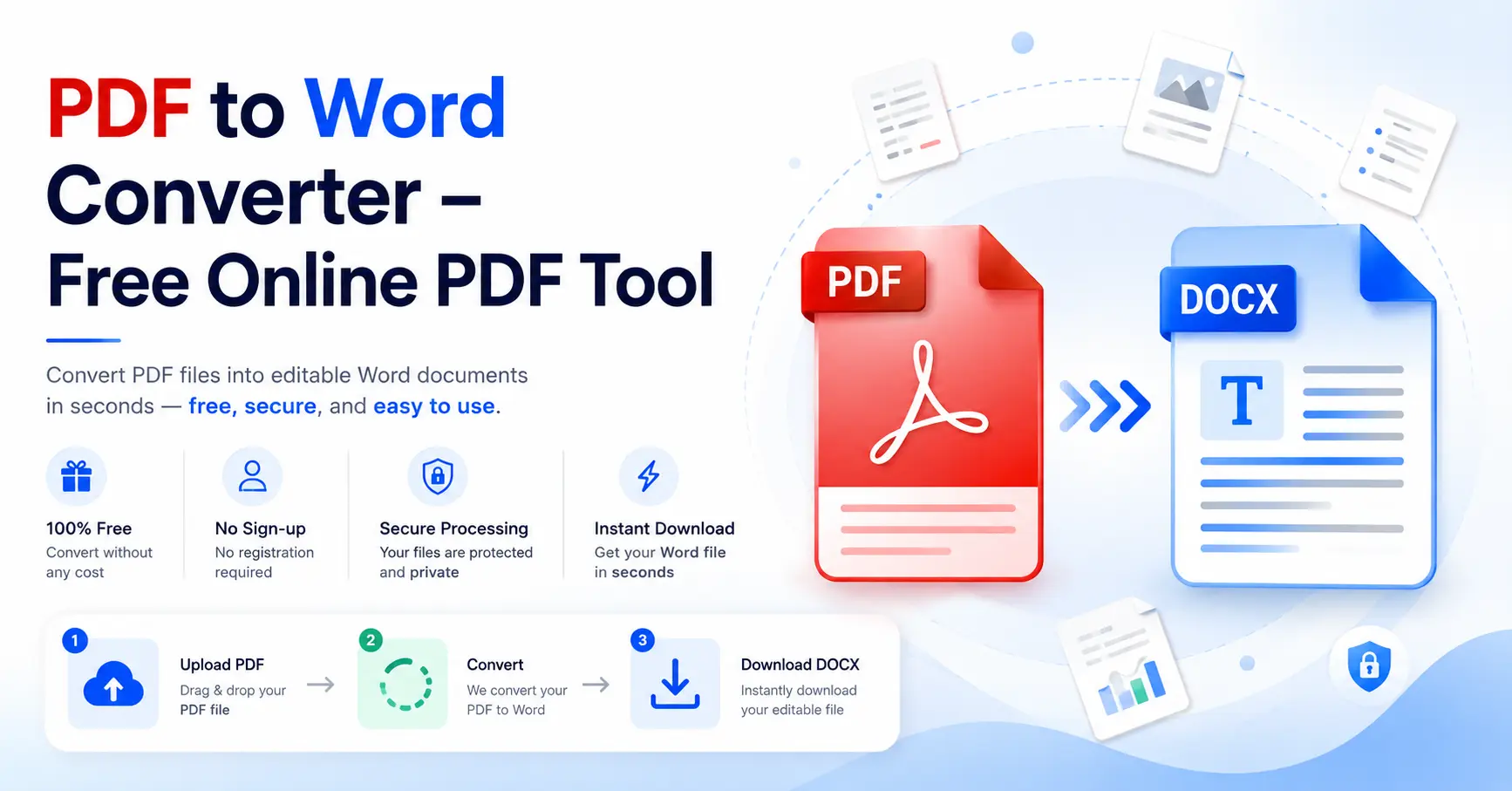
A good converter should make the process as simple as possible:
Upload the PDF.
Start the conversion.
Download the Word file.
Open and review the converted document.
You can explore GoDocLab's PDF tools at https://godoclab.com/.
Why Convert PDF to Word?
The main reason people Convert PDF to Word is to edit the content.
For example, you may have an old report saved only as a PDF. You might need to update a business proposal, change a few details in a document, or reuse information from a PDF in another project.
Instead of manually typing everything again, converting the PDF can give you an editable version to work with.
Common reasons include:
Editing existing text
Correcting spelling mistakes
Updating reports
Reusing information
Editing tables
Modifying business documents
Updating resumes
Reworking forms
Extracting information into an editable document
Microsoft confirms that Word can open many PDF files and convert them into editable Word documents. However, Microsoft also warns that the converted document may not perfectly match the original PDF.
How to Convert PDF to Word Online
Using an online PDF converter can be convenient because you can complete the process from your browser.
If you want to Convert PDF to Word Online Free, the process is usually simple.
Step 1: Select Your PDF
Choose the PDF file you want to convert from your computer or device.
Step 2: Upload the File
Open the PDF-to-Word converter and upload your document.
Step 3: Start Conversion
Select the PDF to Word conversion option and allow the tool to process your document.
Step 4: Download the Word File
Once the conversion finishes, download the resulting Word document.
Step 5: Review the Document
Open the Word file and check the text, formatting, tables, images, and page breaks.
This final step matters. Conversion software can interpret some PDF elements differently from the original document, so a quick review helps catch formatting problems.
Free PDF to Word Converter: Is It Useful?
A Free PDF to Word Converter can be useful when you need to convert a document occasionally and do not want to install additional software.
For basic text-based PDFs, free online conversion can provide a convenient way to create an editable Word document.
However, "free" does not automatically mean that every document will convert perfectly. The quality depends on factors such as the original PDF structure, image quality, fonts, tables, and whether the document contains selectable text.
Before using any online service for confidential documents, always check its privacy and file-handling policies.
Documents containing sensitive financial information, identity documents, private contracts, or confidential business information deserve additional care.
Convert PDF to Word Free Without Losing Formatting
Many users expect the converted Word file to look exactly like the original PDF.
That does not always happen.
A PDF stores content primarily for consistent visual presentation. Word uses editable structures such as paragraphs, headings, tables, and text boxes. During conversion, software must interpret the PDF and rebuild these elements.
Microsoft states that some PDF elements may not convert perfectly, including complex tables, page colors and borders, footnotes, comments, frames, and some graphics.
For this reason, always compare the converted Word file with the original PDF.
Pay particular attention to:
Headings
Paragraph spacing
Tables
Images
Page breaks
Headers and footers
Numbered lists
Fonts
Alignment
Footnotes
A quick review can save you from sending a badly formatted document to a client.
Convert PDF File to Word Easily
When you convert PDF file to Word, the converter needs to identify the information inside the PDF and rebuild it as an editable document.
For example, imagine a PDF containing:
Project Report
Introduction
The project started in January and continued through the following months.
A conversion tool needs to recognize the relationship between the title, heading, and paragraph.
This is one reason simple text documents usually produce better results than complicated designs.
Microsoft explains that Word uses rules to determine which Word objects best represent the PDF's original content and position.
The process is not simply copying everything from one file type into another. It involves interpreting the document and rebuilding its structure.
PDF to Word Document: What Happens During Conversion?
A PDF can contain text, images, tables, graphics, and other elements.
When you create a PDF to Word document, the conversion software attempts to identify those elements and recreate them in a Word-compatible format.
For a normal text-based PDF, the converter can often recognize the text directly.
For a scanned document, the process becomes different because the page may essentially be an image.
That is where OCR becomes important.
Convert Scanned PDF to Word
If you need to Convert Scanned PDF to Word, you may need Optical Character Recognition, commonly known as OCR.
A scanned PDF may not contain actual selectable text. Instead, each page can consist of an image of the original document.
OCR analyzes the image and attempts to recognize the characters.
Adobe explains that OCR can recognize text in scanned PDFs and make that content searchable and editable within supported workflows.
However, OCR is not perfect.
Results can depend on:
Scan quality
Image resolution
Font style
Document orientation
Background noise
Handwriting
Page layout
For important documents, always proofread the converted text.
This is particularly important when the document contains:
Names
Addresses
Numbers
Legal information
Technical terms
Financial information
A single incorrectly recognized character can change the meaning of a sentence.
PDF to Word Format: DOC or DOCX?
When people talk about converting PDF to Word, they usually want an editable Word document.
Modern versions of Microsoft Word commonly use the DOCX format.
DOCX is widely used for modern Word documents and is suitable for editing, sharing, and further document processing.
The important thing is not simply the file extension. You should also check whether the converted document contains editable text and whether its structure remains usable.
If you plan to continue editing the document, make sure the final file opens correctly in your word processor.
Which PDFs Are Easier to Convert?
Not every PDF has the same structure.
A simple document containing selectable text and basic formatting is usually easier to convert.
More complicated documents can require additional cleanup.
PDFs that are usually easier
Text-based reports
Simple business documents
Letters
Basic forms
Standard documents
Documents with simple layouts
Text-based reports
Simple business documents
Letters
Basic forms
Standard documents
Documents with simple layouts
PDFs that may require more cleanup
Scanned documents
Complex tables
Multi-column documents
Graphic-heavy documents
Unusual fonts
Documents with complicated layouts
Interactive PDFs
Scanned documents
Complex tables
Multi-column documents
Graphic-heavy documents
Unusual fonts
Documents with complicated layouts
Interactive PDFs
Microsoft specifically notes that PDF conversion works best when the PDF consists mostly of text.
That does not mean complicated PDFs cannot be converted. It simply means you should review the result more carefully.
PDF to Word Converter Online Free: When Should You Use One?
An online PDF to Word Converter Online Free can be a practical choice when you want a quick browser-based workflow.
For example, suppose someone sends you a PDF and you need to edit a few paragraphs. You may not want to install additional software just for one document.
An online converter can simplify the process.
You can upload the file, convert it, download the Word document, make your edits, and continue working.
GoDocLab offers online document and PDF tools that can help users perform these types of tasks through a browser.
You can visit https://godoclab.com/ to explore the available tools.
How to Get Better Conversion Results
You can improve your chances of getting a clean document by starting with the best PDF available.
Use a clear PDF
If you have multiple copies of a document, use the clearest and highest-quality version.
A poor-quality scan can make OCR less accurate.
Check the formatting
After conversion, check the document carefully.
Look at headings, tables, images, page breaks, and spacing.
Review important information
If the document contains important numbers, names, addresses, or legal information, compare them with the original PDF.
Keep the original PDF
Do not immediately delete the original document after conversion.
The PDF provides a useful reference if you need to check the converted Word file.
PDF to Word Converter vs. Copy and Paste
Copying text directly from a PDF can work if you only need a sentence or short paragraph.
However, copying an entire document can create unnecessary formatting problems.
Text may lose its original structure. Tables may become difficult to manage. Paragraphs can also appear in unexpected places.
Microsoft notes that copying content from PDFs may result in plain text without the original formatting.
For a complete document, a dedicated converter can be more convenient.
The choice depends on the task.
Need one sentence?
Copy and paste may be enough.
Need an entire report?
A PDF-to-Word converter is usually the more practical option.
Frequently Asked Questions
Can I convert a PDF to Word for free?
Yes. Several tools offer free PDF-to-Word conversion options. The available features and limits vary between services.
Can I convert a scanned PDF to Word?
Yes, when the conversion tool supports OCR. OCR recognizes text from scanned document images and can turn that recognized content into editable text.
Will the Word document look exactly like the PDF?
Not always. Microsoft explains that some formatting, tables, graphics, page breaks, and other elements can change during PDF conversion.
Can I edit the converted Word document?
Yes. A converted Word document is designed to provide editable content. You should review the document before using it for important work.
Do I need Microsoft Word to convert a PDF?
No. Online PDF conversion tools can provide a browser-based way to convert PDF files without requiring Microsoft Word for the conversion itself.
Why does my converted document look different?
PDFs and Word documents handle document structure differently. Complex layouts, tables, images, fonts, and scanned pages can therefore produce different results after conversion.
Final Thoughts
A PDF is excellent for keeping a document's appearance consistent, but editing a PDF can be inconvenient when you do not have the original source file.
A PDF to Word Converter provides a practical way to turn that content into an editable Word document.
For simple text-based documents, conversion can be quick and straightforward. Scanned documents may require OCR, while complex layouts may need some manual formatting after conversion.
The best approach is simple: convert the file, review the result, correct anything that changed, and then continue editing.
If you want a browser-based solution, visit GoDocLab at https://godoclab.com/ and explore its PDF tools.